전역 상태 관리(Context API, Redux Toolkit, Zustand)
리액트의 상태 관리 방식은 크게 로컬 상태 관리와 전역 상태 관리로 나눌 수 있다.
로컬 상태 관리
로컬 상태 관리는 useState나 useReducer와 같은 훅을 사용하여 각 컴포넌트에서 상태를 관리하는 것을 말한다.
// App.tsx
import { useState } from "react";
import CounterView from "./components/CounterView";
import CounterButtons from "./components/CounterButtons";

export default function App() {
  const [count, setCount] = useState(0);
  const increment = () => {
    setCount(count => count + 1);
  }
  const decrement = () => {
    setCount(count => count - 1);
  }
  const reset = () => {
    setCount(0);
  }
  return(
    <>
      <CounterView count={count}></CounterView>
      <CounterButtons increment={increment} decrement={decrement} reset={reset}></CounterButtons>
    </>
  );
}

// CounterView.tsx
export default function CounterView({ count }: { count: number; }) {
  return(
    <div>Counter: {count}</div>
  );
}

// CounterButtons.tsx
export default function CounterButtons({ increment, decrement, reset } : {
  increment: () => void;
  decrement: () => void;
  reset: () => void;
 }) {
  return(
    <>
      <button onClick={increment}>증가</button>
      <button onClick={decrement}>감소</button>
      <button onClick={reset}>재설정</button>
    </>
  );
}
로컬 상태를 사용할 경우 형제간 데이터 공유를 위해서는 반드시 상태 끌어올리기 패턴을 사용하여 부모에서부터 데이터를 전달 받아야 하는데, 이 때 중간 컴포넌트를 데이터를 전달하기 위한 목적으로만 사용하는 경우가 생길 수 있으며, props로 전달되는 데이터 수가 많을 수록 유지보수가 어렵다는 단점이 있다. 따라서 컴포넌트의 단계가 깊어지는 경우 전역 상태 관리를 사용한다.
전역 상태 관리
전역 상태 관리는 상태를 애플리케이션 전체에서 공유 가능한 형태로 관리하는 방식입니다. 여러 컴포넌트가 전역 상태에 직접 접근하고 값을 수정할 수 있으므로 일일이 props를 통해 전달할 필요가 없습니다.
리액트의 전역 상태 관리는 ContextAPI, Redux Toolkit, Zustand를 중 하나를 사용하여 구현할 수 있다.
Context API
Context API는 컴포넌트 트리 내에서 상태나 값을 전역적으로 공유할 수 있게 하는 기능을 제공합니다. … 리액트에서 컨텍스트는 여러 컴포넌트를 하나의 환경으로 묶어 이들 사이에서 상태나 데이터를 props 없이 직접 공유할 수 있도록 해주는 구조입니다.
Context API는 리액트에서 제공하는 공식 전역 상태 관리 도구이다. Context 객체를 만든 뒤 Provider 컴포넌트를 통해 값을 전달하며, 각 컴포넌트에서는 커스텀 훅을 사용하여 전역 상태에 접근한다.
Context API 사용 방법
ContextAPI 작업 순서
- 컨텍스트 객체 생성(createContext)
- Provider로 컨텍스트 범위 지정(useState)
- 커스텀 훅 생성(useContext)
- 컨텍스트로 공유되는 전역 상태 사용
// CountContext.ts
import { createContext } from "react";

interface CountContextType {
  count: number;
  increment: () => void;
  decrement: () => void;
  reset: () => void;
}

export const CountContext = createContext<CountContextType | null>(null);
// CountProvider.tsx
import { useState } from "react";
import { CountContext } from "../contexts/CountContext";
export default function CountProvider({children}: {children: React.ReactNode;}) {
const [count, setCount] = useState(0);
const increment = () => {
setCount(count => count + 1);
}
const decrement = () => {
setCount(count => count - 1);
}
const reset = () => {
setCount(0);
}
return(
<>
<CountContext value={{count, increment, decrement, reset}}>
{children}
</CountContext>
</>
);
}// useCountContext.ts
import { useContext } from "react";
import { CountContext } from "../contexts/CountContext";
export function useCountContext() {
const context = useContext(CountContext);
if(!context) {
throw new Error("'useCountContext는 CountContext로 감싼 컴포넌트 안에서만 호출할 수 있습니다.'");
}
return context;
}// CounterButtons.tsx
import { useCountContext } from "../hooks/useCountContext";
export default function CounterButtons() {
const { increment, decrement, reset } = useCountContext();
return(
<>
<button onClick={increment}>증가</button>
<button onClick={decrement}>감소</button>
<button onClick={reset}>재설정</button>
</>
);
}렌더링 최적화
예제에서 Context를 하나로 관리하면 count 숫자만 바뀌어도 increment 함수만 필요한 컴포넌트까지 불필요하게 리렌더링 될 수 있다. 따라서 **값(State)**과 **업데이트 함수(Action)**를 담는 Context를 분리하면 렌더링 효율을 높일 수 있다.
// CountContext.ts
import { createContext } from "react";

interface CountContextType {
  count: number;
}

interface CountActionContextType {
  increment: () => void;
  decrement: () => void;
  reset: () => void;
}

export const CountContext = createContext<CountContextType | null>(null);
export const CountActionContext = createContext<CountActionContextType | null>(null);

// CountProvider.tsx
import { useMemo, useState } from "react";
import { CountActionContext, CountContext } from "../contexts/CountContext";

export default function CountProvider({children}: {children: React.ReactNode;}) {
  const [count, setCount] = useState(0);
  const increment = () => {
    setCount(count => count + 1);
  }
  const decrement = () => {
    setCount(count => count - 1);
  }
  const reset = () => {
    setCount(0);
  }
  const memoizedValue = useMemo(() => ({increment, decrement, reset}), []);
  return(
    <>
      <CountActionContext value={memoizedValue}>
        <CountContext value={{count}}>
          {children}
        </CountContext>
      </CountActionContext>
    </>
  );
}

// useCountContext.ts
import { useContext } from "react";
import { CountActionContext, CountContext } from "../contexts/CountContext";

export function useCountContext() {
  const context = useContext(CountContext);

  if(!context) {
    throw new Error("'useCountContext는 CountContext로 감싼 컴포넌트 안에서만 호출할 수 있습니다.'");
  }

  return context;
}

export function useCountActionContext() {
  const context = useContext(CountActionContext);

  if(!context) {
    throw new Error("'useCountActionContext는 CountActionContext로 감싼 컴포넌트 안에서만 호출할 수 있습니다.'");

  }

  return context;
}

// CounterButtons.tsx
import { useCountActionContext } from "../hooks/useCountContext";

export default function CounterButtons() {
  console.log('CounterButtons rendering');
  const { increment, decrement, reset } = useCountActionContext();
  return(
    <>
      <button onClick={increment}>증가</button>
      <button onClick={decrement}>감소</button>
      <button onClick={reset}>재설정</button>
    </>
  );
}
컨텍스트 중첩 사용
같은 방법으로 만든 또다른 컨텍스트를 중첩하여 사용할 수 있다.
import Auth from "./components/Auth";
import Counter from "./components/Counter";
import CounterOutsideView from "./components/CounterOutsideView";
import AuthProvider from "./providers/AuthProvider";
import CountProvider from "./providers/CountProvider";

export default function App() {
  console.log('App rendering');
  return(
    <AuthProvider>
      <CountProvider>
        <Counter></Counter>
        <CounterOutsideView></CounterOutsideView>
        <Auth></Auth>
      </CountProvider>
    </AuthProvider>
  );
}
use 훅으로 Context API 사용하기
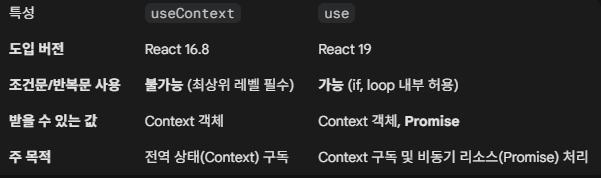
리액트 19부터 useContext를 대체할 수 있는 use 훅이 도입되었다. use 훅은 항상 컴포넌트 최상위에서 호출되어야하는 useContext와 달리, 조건문 안에서도 사용할 수 있어 불필요한 컴포넌트 렌더링을 막을 수 있다.
// 기존 useContext 방식
import { useContext } from 'react';
import { StockContext } from './StockContext';

function StockWidget({ isOpen }) {
  // ⚠️ 문제점: 위젯이 닫혀 있어도(isOpen=false), 컨텍스트를 구독함.
  // 주식 가격이 변할 때마다(1초에 10번), 이 컴포넌트 함수는 계속 실행됨!
  const stockData = useContext(StockContext);

  // Early Return: 화면에 그리는 건 여기서 막아주지만,
  // 위쪽의 Hook 호출로 인한 '함수 실행' 자체는 막을 수 없음.
  if (!isOpen) {
    return null;
  }

  return (
    <div className="stock-ticker">
      현재가: {stockData.price}
    </div>
  );
}
// 신규 use 방식
// StockWidget.js (새로운 방식)
import { use } from 'react';
import { StockContext } from './StockContext';
function StockWidget({ isOpen }) {
// 1. Early Return 먼저 수행
// 위젯이 닫혀있으면 여기서 함수가 종료됨.
if (!isOpen) {
return null;
}
// 2. 위에서 리턴되지 않았을 때(isOpen=true)만 실행됨.
// 즉, isOpen이 false일 때는 이 라인이 절대 실행되지 않음 -> 구독 안 함!
const stockData = use(StockContext);
return (
<div className="stock-ticker">
현재가: {stockData.price}
</div>
);
}
Redux Toolkit
Redux는 JS의 상태 관리 라이브러리로, Vue나 Angular에서도 사용할 수 있다. Redux는 설정이 복잡하여 사용이 꺼려지는 부분이 있었는데, 이를 해결한 Redux Toolkit이 나와 더욱 간편하게 Redux의 기능을 사용할 수 있다. (Redux 공식 문서에서도 Redux Toolkit의 사용을 권장하고 있다.)
Redux Toolkit 설치 방법
$ npm install @reduxjs/toolkit react-redux
Redux Toolkit 사용 방법
기본적으로 App을 Provider로 감싼 뒤, store와 slice를 추가하여 사용하면 된다. slice는 상태와 액션이 정의되는 곳으로, store에 추가되어 사용된다.
// main.tsx
import { StrictMode } from 'react'
import { createRoot } from 'react-dom/client'
import { store } from './store/store.ts';
import { Provider } from 'react-redux';
import App from './App.tsx'
import './index.css'

createRoot(document.getElementById('root')!).render(
  <StrictMode>
    <Provider store={store}>
      <App />
    </Provider>
  </StrictMode>,
)
// store/store.ts
import { configureStore } from '@reduxjs/toolkit';
import counterSlice from './slice/counterSlice';
export const store = configureStore({
reducer: {
counter: counterSlice,
},
})
export type RootState = ReturnType<typeof store.getState>;
export type AppDispatch = typeof store.dispatch;// store/slice/counterSlice.ts
import { createSlice } from "@reduxjs/toolkit";
export interface CounterState {
value: number;
}
const initialState: CounterState = {
value: 0,
}
export const counterSlice = createSlice({
name: 'counter',
initialState,
reducers: {
increment: (state) => {
state.value += 1;
},
decrement: (state) => {
state.value -= 1;
},
reset: (state) => {
state.value = 0;
}
}
});
export const { increment, decrement, reset } = counterSlice.actions;
export default counterSlice.reducer;// App.tsx
import Count from "./components/Count";
import CountOutSideDisplay from "./components/CountOutsideDisplay";
export default function App() {
return(
<>
<Count />
<CountOutSideDisplay />
</>
);
}// components/Count.tsx
import CountButtons from "./CountButtons";
import CountDisplay from "./CountDisplay";
export default function Count()
{
return (
<>
<CountDisplay />
<CountButtons />
</>
)
}// components/CountOutsideDisplay.tsx
import { useSelector } from "react-redux";
import type { RootState } from "../store/store";
export default function CountOutSideDisplay() {
const count = useSelector((state: RootState) => state.counter.value);
return(
<h1>Outside Count: {count}</h1>
);
}// components/CountDisplay.tsx
import { useSelector } from "react-redux";
import type { RootState } from "../store/store";
export default function CountDisplay() {
const count = useSelector((state: RootState) => state.counter.value);
return(
<h1>Count: {count}</h1>
);
}// components/CountButtons.tsx
import { useDispatch } from "react-redux";
import { decrement, increment, reset } from "../store/slice/counterSlice";
export default function CounterButtons() {
const dispatch = useDispatch();
return(
<>
<button onClick={() => dispatch(decrement())}>감소</button>
<button onClick={() => dispatch(reset())}>초기화</button>
<button onClick={() => dispatch(increment())}>증가</button>
</>
);
}값을 전달해 상태 변경하기
slice 내부에 정의한 액션에 파라미터를 전달하고 싶으면 action 객체를 사용한다.
// store/slice/counterSlice.ts
import { createSlice, type PayloadAction } from "@reduxjs/toolkit";

export interface CounterState {
  value: number;
}
const initialState: CounterState = {
  value: 0,
}
export const counterSlice = createSlice({
  name: 'counter',
  initialState,
  reducers: {
    increment: (state) => {
      state.value += 1;
    },
    decrement: (state) => {
      state.value -= 1;
    },
    reset: (state) => {
      state.value = 0;
    },
    incrementByAmount: (state, action: PayloadAction<{ count: number }>) => {
      state.value += action.payload.count;
    }
  }
});
export const { increment, decrement, reset, incrementByAmount } = counterSlice.actions;
export default counterSlice.reducer;
// components/CountButtons.tsx
import { useDispatch } from "react-redux";
import { decrement, increment, reset, incrementByAmount } from "../store/slice/counterSlice";
export default function CounterButtons() {
const dispatch = useDispatch();
return(
<>
<button onClick={() => dispatch(decrement())}>감소</button>
<button onClick={() => dispatch(reset())}>초기화</button>
<button onClick={() => dispatch(increment())}>증가</button>
<button onClick={() => dispatch(incrementByAmount({ count: 10 }))}>10 증가</button>
</>
);
}개발자 도구 활용하기
Chrome의 Redux DevTools를 사용하면 디버깅이 더욱 쉬워진다.
Zustand
Zustand(주스탠드)은 리액트에서 사용할 수 있는 가벼운 상태 관리 라이브러리로, Context API나 Redux + Redux Toolkit 보다 간편한 사용법으로 근래 주목받고 있다.
Zustand 설치 방법
$ npm install zustand
Zustand 사용 방법
Zustand는 Provider 없이도 상태를 공유할 수 있다. Store를 생성하여 상태와 액션을 정의하고 사용하면 되어 매우 간편하다.
// store/counterStore.ts
import { create } from 'zustand';

interface CounterStoreState {
  count: number;
  increment: () => void;
  decrement: () => void;
  reset: () => void;
  resetIfEven: () => void;
}
export const useCounterStore = create<CounterStoreState>((set, get) => ({
  count: 0,
  increment: () => set((state) => ({ count: state.count + 1 })),
  decrement: () => set((state) => ({ count: state.count - 1 })),
  reset: () => set({ count: 0 }),
  resetIfEven: () => {
    const { count } = get();
    if (count % 2 === 0) {
      set({count: 0});
    }
  }
}));
// App.tsx
import Count from "./components/Count";
import CountOutSideDisplay from "./components/CountOutsideDisplay";
export default function App() {
return(
<>
<Count />
<CountOutSideDisplay />
</>
);
}// components/Count.tsx
import CountButtons from "./CountButtons";
import CountDisplay from "./CountDisplay";
export default function Count()
{
return (
<>
<CountDisplay />
<CountButtons />
</>
)
}// components/CountOutsideDisplay.tsx
import { useCounterStore } from "../store/counterStore";
export default function CountOutSideDisplay() {
const count = useCounterStore((state) => state.count);
return(
<h1>Outside Count: {count}</h1>
);
}// components/CountDisplay.tsx
import { useCounterStore } from "../store/counterStore";
export default function CountDisplay() {
const count = useCounterStore((state) => state.count);
return(
<h1>Count: {count}</h1>
);
}// components/CountButtons.tsx
import { useCounterStore } from "../store/counterStore";
export default function CounterButtons() {
const increment = useCounterStore((state) => state.increment);
const decrement = useCounterStore((state) => state.decrement);
const reset = useCounterStore((state) => state.reset);
const resetIfEven = useCounterStore((state) => state.resetIfEven);
return(
<>
<button onClick={decrement}>감소</button>
<button onClick={reset}>초기화</button>
<button onClick={resetIfEven}>초기화(짝수)</button>
<button onClick={increment}>증가</button>
</>
);
}Zustand의 고급 기능
Zustand는 다양한 미들웨어를 제공해 상태 관리 기능을 확장할 수 있도록 지원합니다. 여기서 미들웨어란 상태를 읽거나 쓸 때 또는 변경하는 과정에 추가 동작을 삽입할 수 있게 해주는 기능입니다.
-
persist 미들웨어 persist를 사용하면 상태를 로컬 스토리지에 저장할 수 있다.
-
subscribeWithSelector 미들웨어 subscribeWithSelector를 사용하면 특정 상태를 계속 감시하다가 값이 변경되는 순간 함수가 실행되도록 설정하는 구독 기능을 사용할 수 있다.
-
immer 미들웨어 Zustand는 set 함수를 통해 상태를 변경하는데, Immer 미들웨어를 쓰면 state.count += 1처럼 불변성을 신경 쓰지 않고 작성할 수 있어 편하다. 즉, 새로운 객체를 만들어 교체하지 않고 기존 객체를 수정하는 식으로 코드를 작성할 수 있다. immer 패키지는 별도로 설치가 필요하다.
$ npm install immer -
devtools 미들웨어 devtools를 사용하면 Redux 개발자 도구와 연동할 수 있다.
미들웨어 사용 예시
// store/counterStore.ts
import { create } from 'zustand';
import { devtools, persist, subscribeWithSelector } from 'zustand/middleware';
import { immer } from 'zustand/middleware/immer';

interface CounterStoreState {
  count: number;
  increment: () => void;
  decrement: () => void;
  reset: () => void;
  resetIfEven: () => void;
}

// 미들웨어 순서: immer (가장 안쪽) -> persist -> subscribe -> devtools (가장 바깥쪽)
export const useCounterStore = create<CounterStoreState>()(
  devtools(
    subscribeWithSelector(
      persist(
        immer((set, get) => ({
          count: 0,
          increment: () => set((state) => { state.count += 1 }), // immer 덕분에 직접 수정 가능
          decrement: () => set((state) => { state.count -= 1 }),
          reset: () => set((state) => { state.count = 0 }),
          resetIfEven: () => {
            const { count } = get();
            if (count % 2 === 0) {
              set((state) => { state.count = 0 }); // 화살표 함수 뒤 중괄호 {} 사용 권장
            }
          },
        })),
        { name: 'counter-store' }
      )
    ),
    { name: 'CounterStore' } // devtools 이름 설정
  )
);
// components/CountButtons.tsx
import { useEffect } from "react";
import { useCounterStore } from "../store/counterStore";
export default function CounterButtons() {
const increment = useCounterStore((state) => state.increment);
const decrement = useCounterStore((state) => state.decrement);
const reset = useCounterStore((state) => state.reset);
const resetIfEven = useCounterStore((state) => state.resetIfEven);
useEffect(() => {
const unsubscribe = useCounterStore.subscribe(
(state) => state.count,
(newCount) => {
console.log('Count has changed to:', newCount);
}
);
return () => {
unsubscribe();
};
}, []);
return(
<>
<button onClick={decrement}>감소</button>
<button onClick={reset}>초기화</button>
<button onClick={resetIfEven}>초기화(짝수)</button>
<button onClick={increment}>증가</button>
</>
);
}